

 Italiano
 Español
One great advantage of using Active Directory Domain Services is the possibility to share a printer in just a few clicks with a group of computers or users.
Since Windows Server 2012 isn’t even necessary to create a Group Policy Object (GPO), Windows will do the job for us speeding up the process.
We are going to show how you can share an existing (installed) printer to an AD Group of Computers.
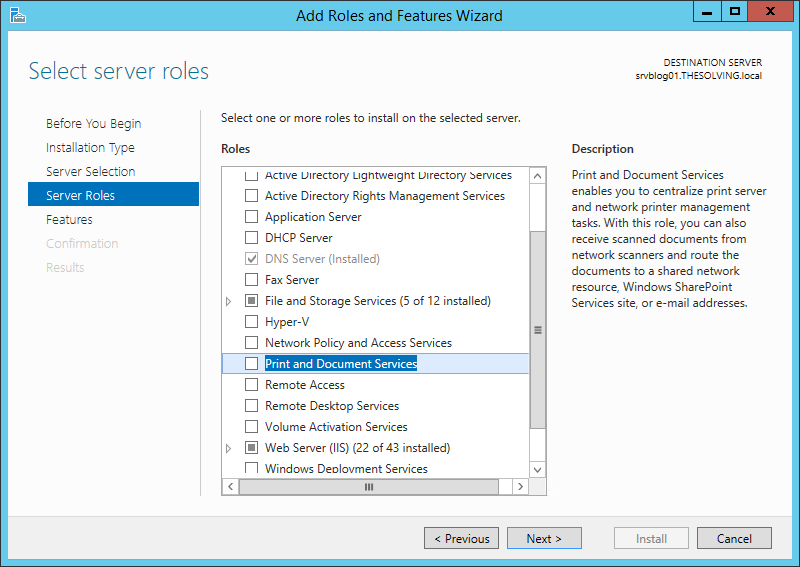
First of all, install the Print and Document Services role:
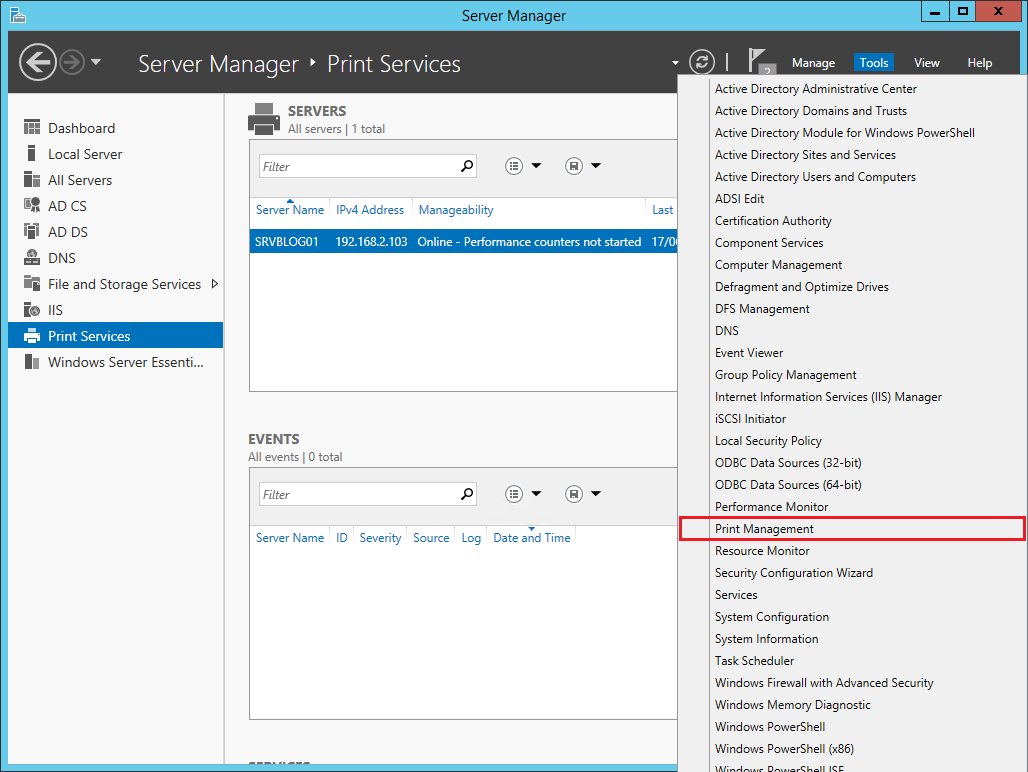
Then open the Print Management panel from the Server Manager:
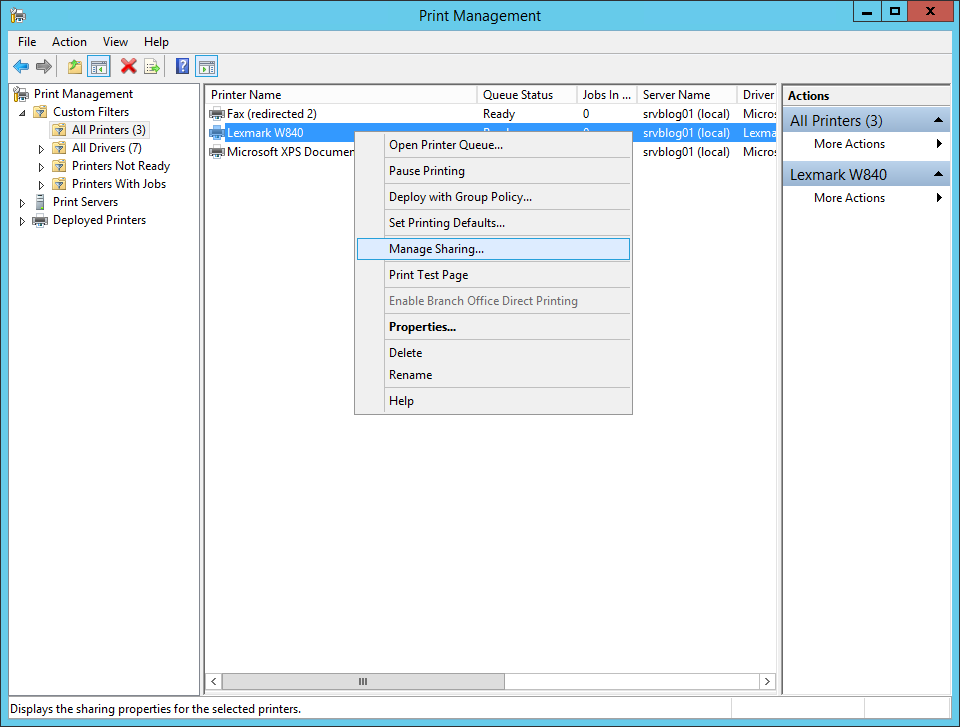
From the Print Management panel select the printer, right-click and select Manage Sharing:
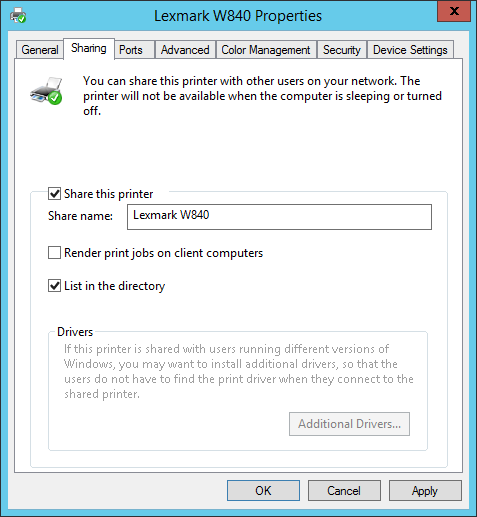
Check Share this printer and List in the directory, then click Apply:
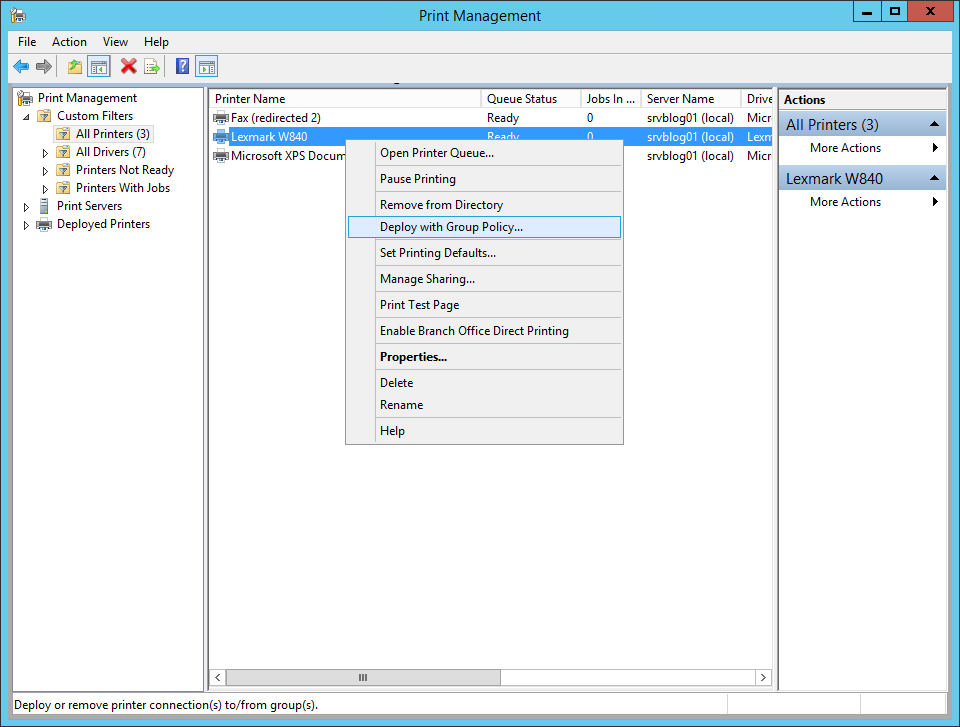
Select the printer, right-click and select Deploy with Group Policy:
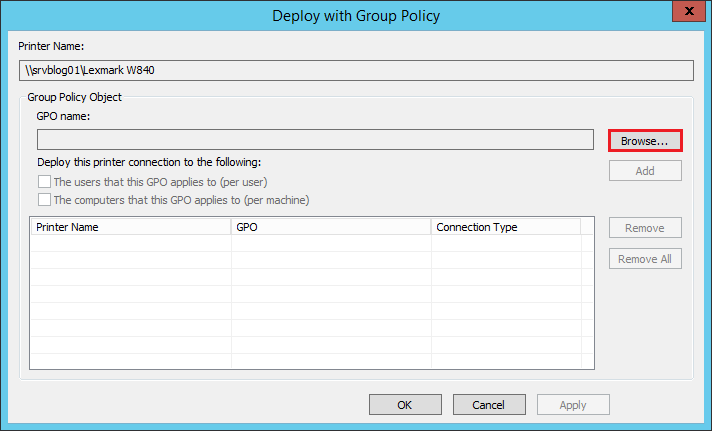
Click Browse:
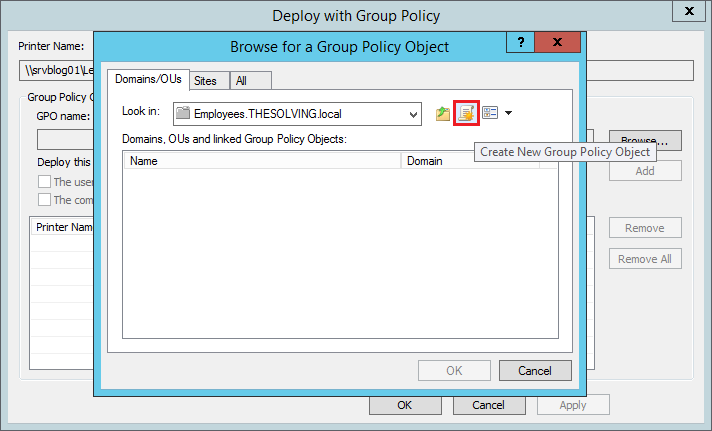
Navigate through the organizational unit that needs to access the printer and Create a New Group Policy Object:
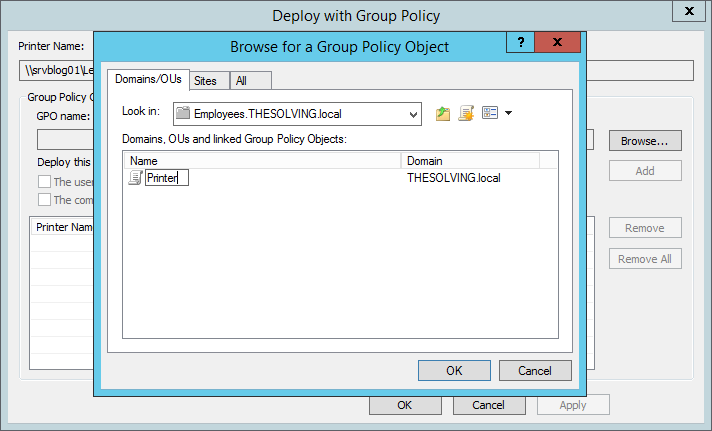
Name the policy then click Ok:
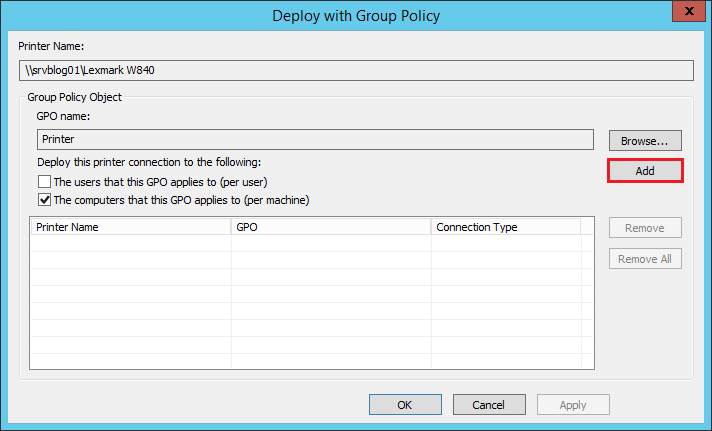
Check The computer that this GPO applies to and click Add:
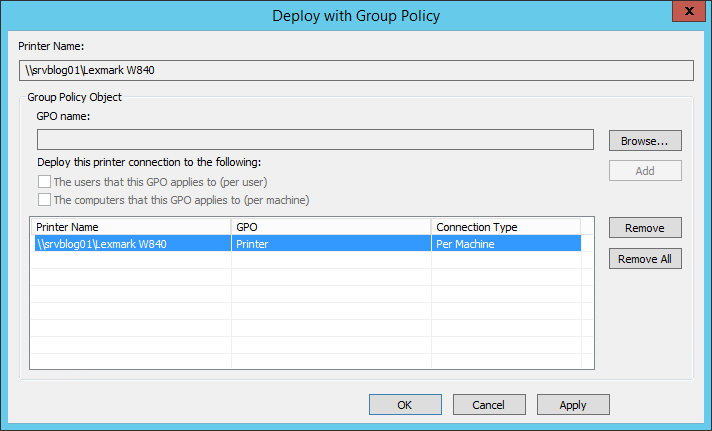
The configuration is finished, you just have to click Apply:
Read related articles
How to configure static routes to route traffic through a specific gateway
Learn how to configure static routes on Windows Server and Windows 11 using route add and PowerShell’s New-NetRoute, so traffic to specific destinations takes the gateway you choose.
How to reset NTFS permissions with ICACLS
Learn how to fix broken NTFS/ACL permissions on Windows Server using ICACLS: reset ACLs, handle access denied errors, take ownership, and back up permission trees safely.
Configuring and using Windows Deployment Services (WDS)
A 2026 guide to WDS: installation, PXE boot, boot/install images, and the limitations introduced with Windows 11 and Server 2025.