

 Italiano
 Español
We know it’s a weird scenario but you may need to run Hyper-V on an ESXi virtual machine for testing purposes. Let’s make an example: you have an ESXi 5.5 node with a Windows Server 2012 R2 running on it. You need to install Hyper-V.. but you can’t! Because your hardware configuration doesn’t support virtualization (Windows will refuse to add the role).
Is there a solution? Yes, an easy one.
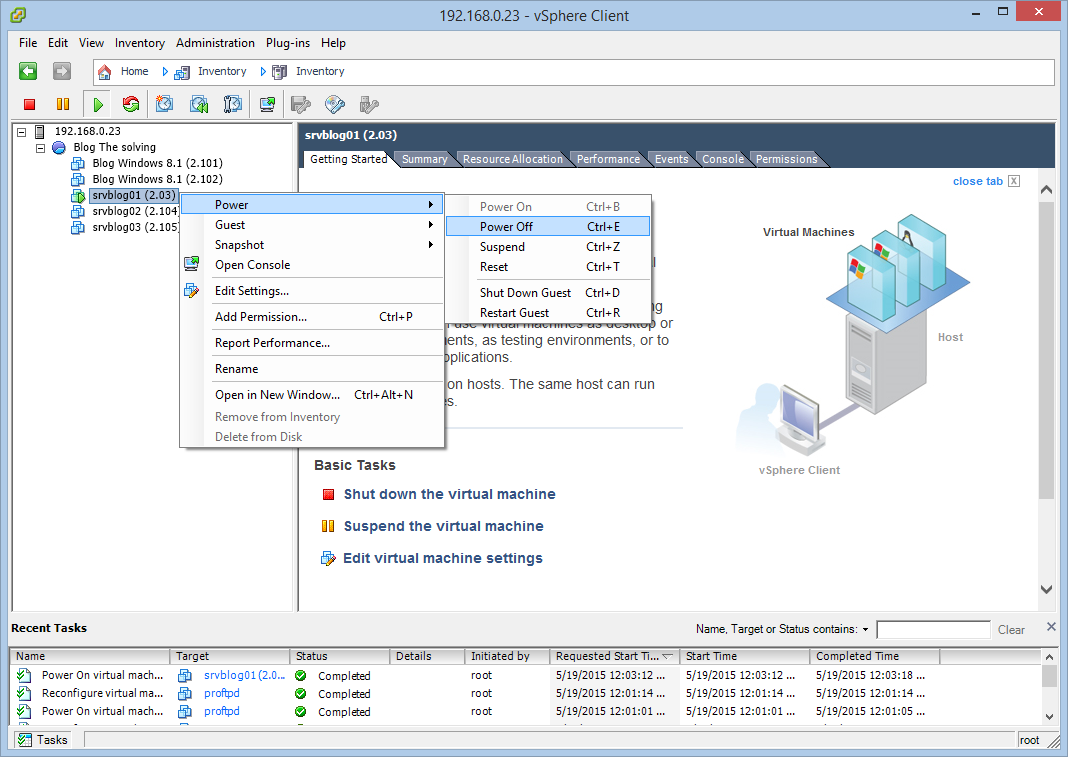
First of all, Power Off the virtual machine:
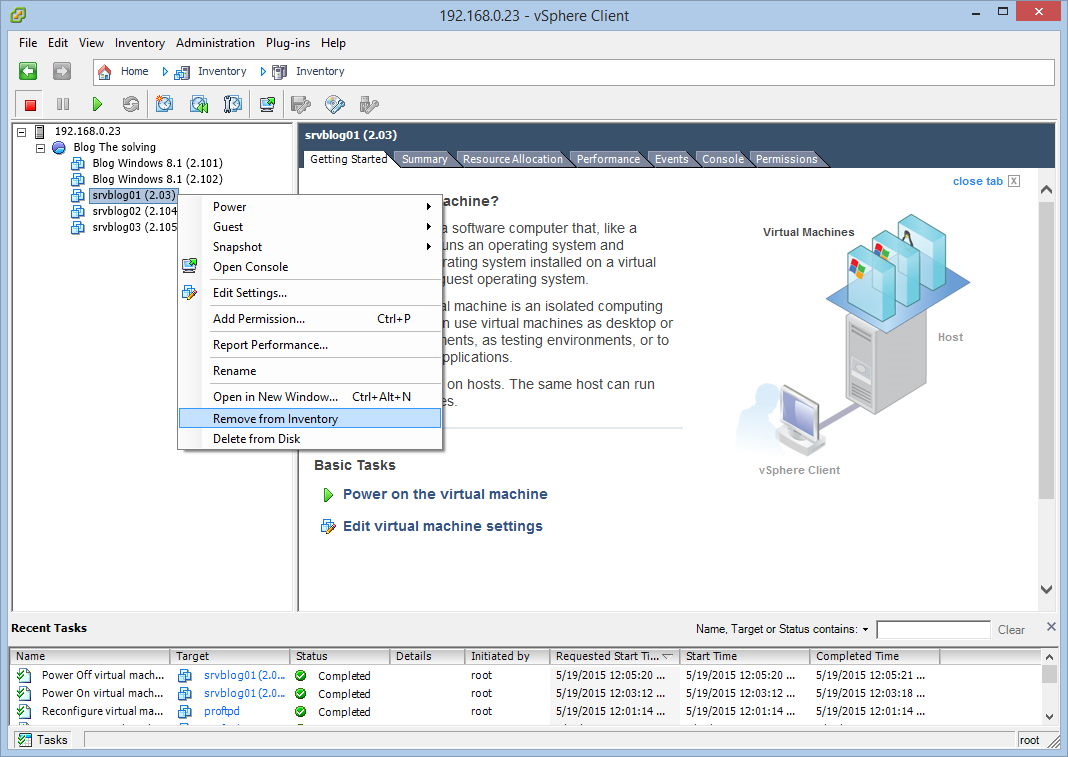
Then remove it from the inventory (it won’t be deleted):
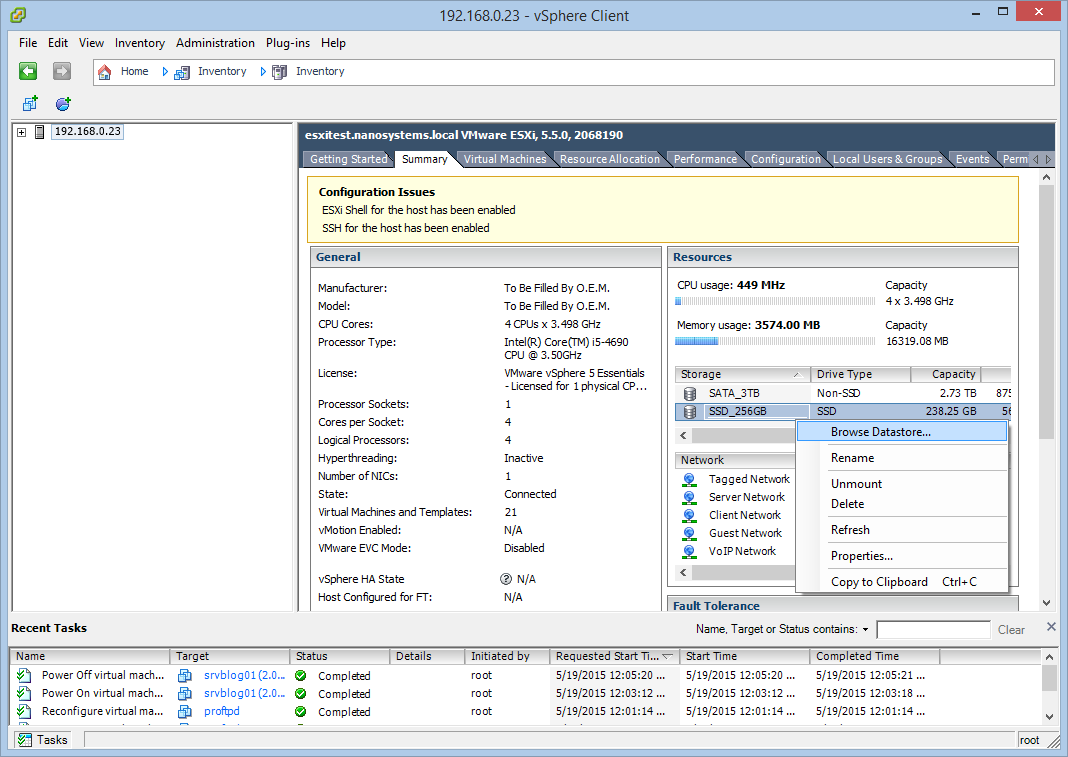
Go to the Datastore:
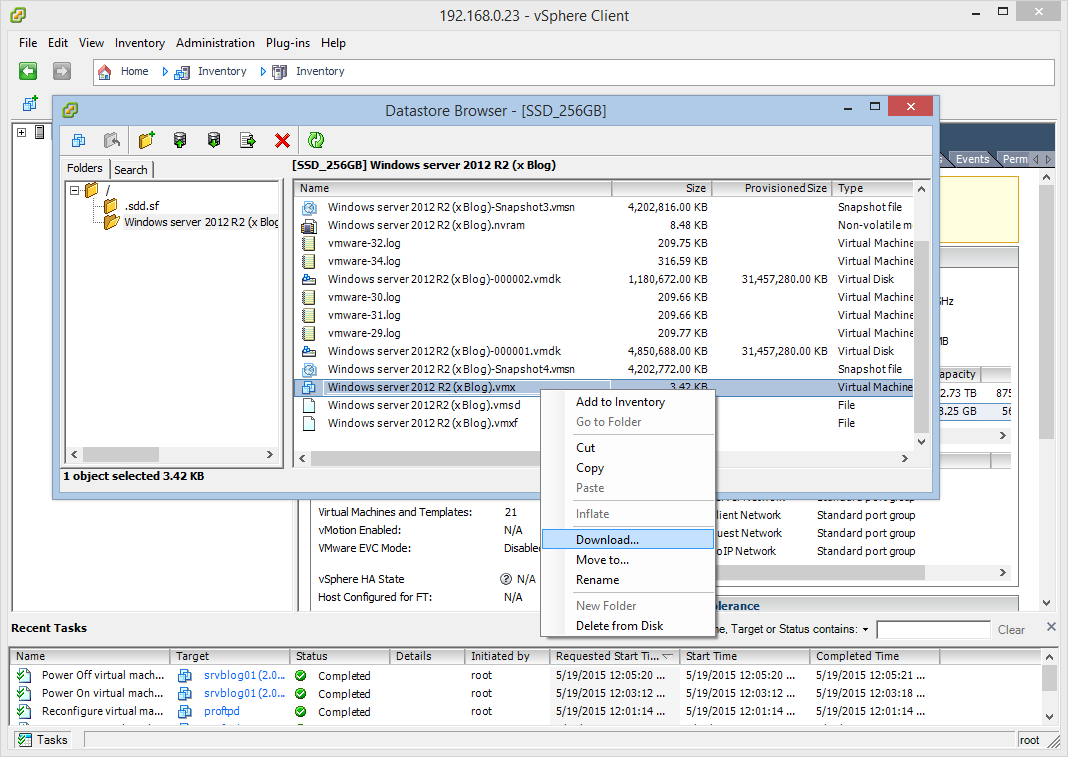
Open the virtual machine folder and download the .vmx file:
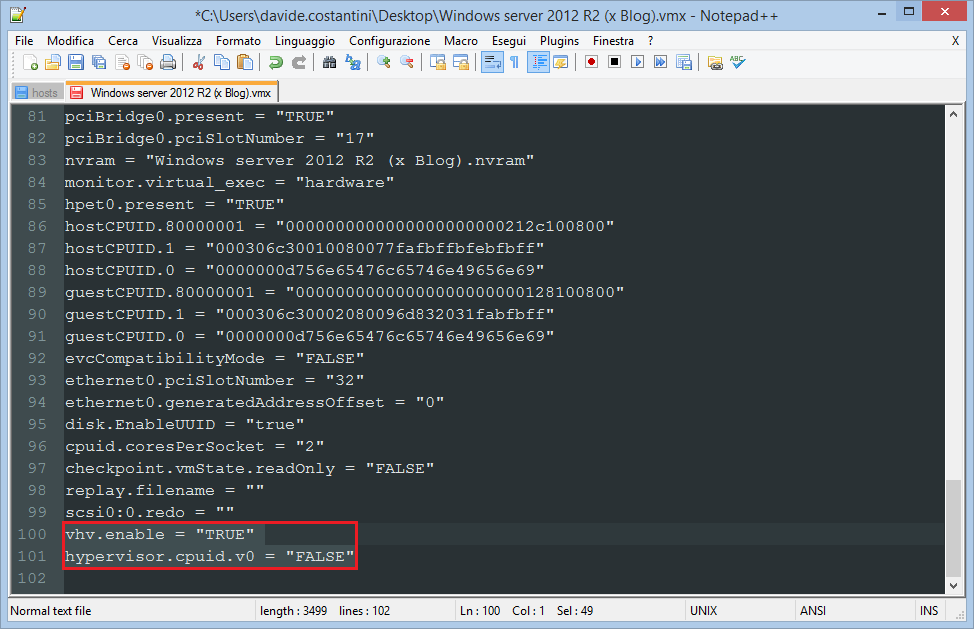
Edit the .vmx file with Notepad++. Add these two rows at the end of the configuration file (be careful with the quotes!!):
vhv.enable = "TRUE"

hypervisor.cpuid.v0 = "FALSE"
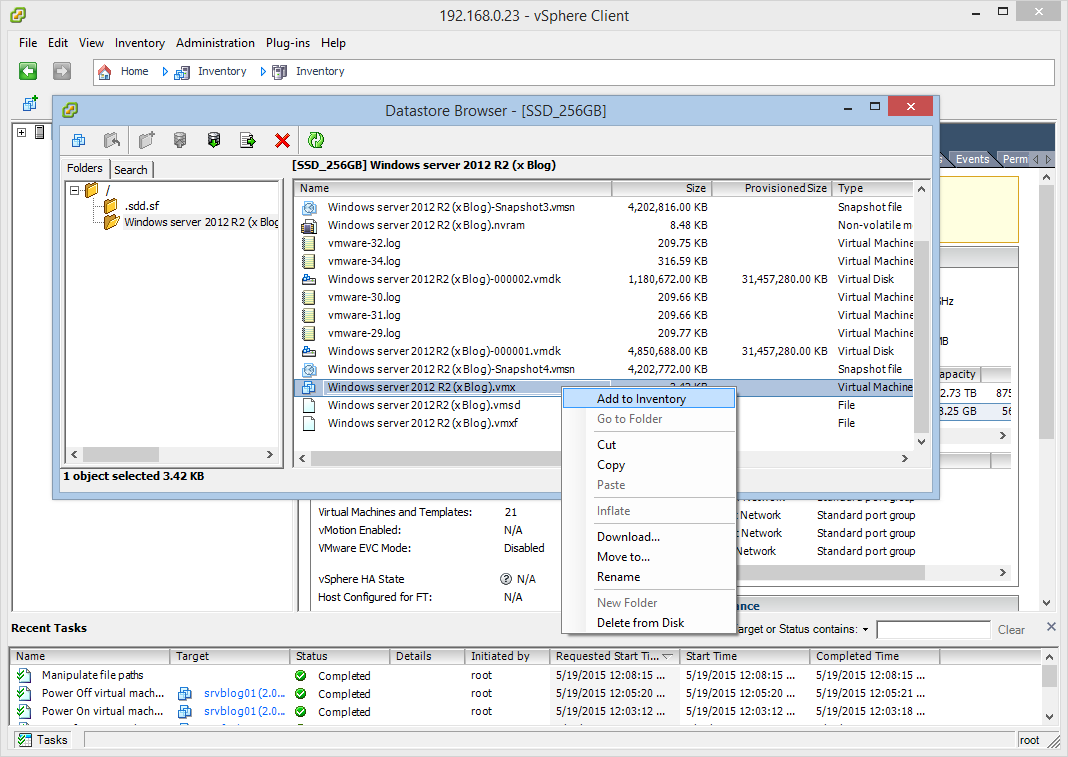
Upload the edited .vmx file, right-click on it and select Add to Inventory:
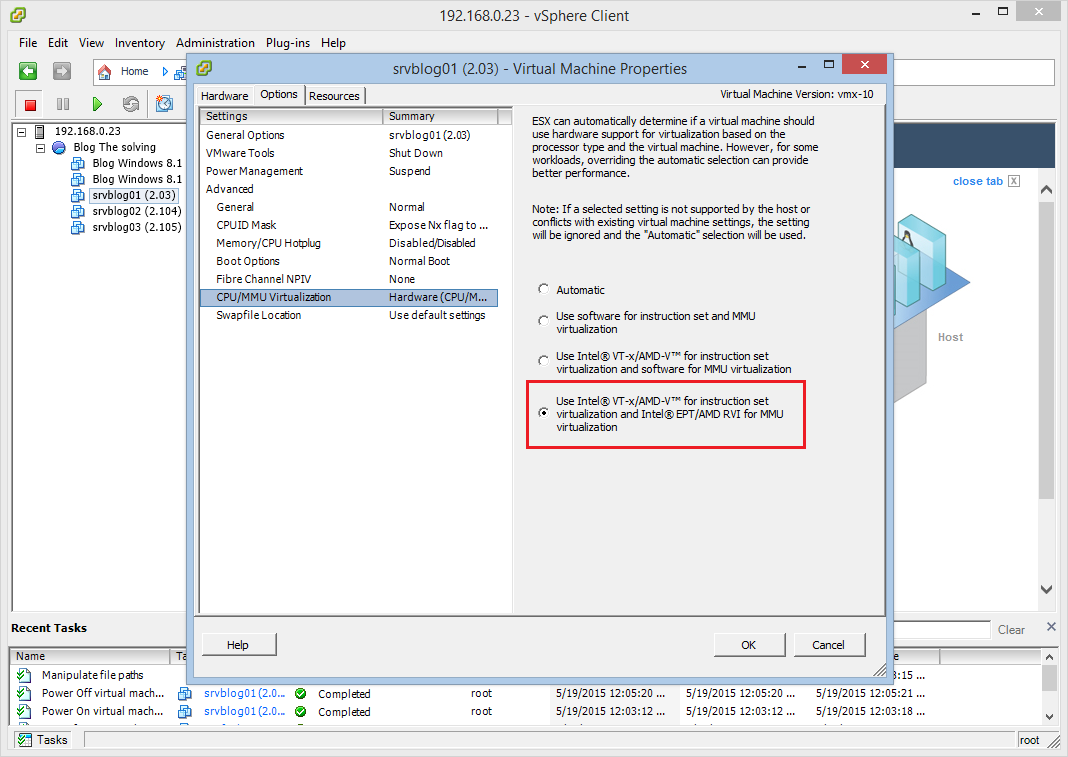
We’re almost ready. Before launching the virtual machine edit the settings and “force” VT-x/AMD-V support:
Now you can Power On the machine and install the Hyper-V role.
Read related articles
VMware vSphere Client in 2026: how to access and manage vCenter
There is no VMware vSphere Client to download in 2026. Access vCenter through the built-in HTML5 client at https:///ui, manage standalone ESXi hosts via the Host Client, and automate with VCF PowerCLI. This guide covers the free ESXi Hypervisor, VCF 9, support timelines, and migration paths for MSPs.
Install VMware ESXi on a Hyper-V
It is possible to use nested virtualization to run VMware ESXi as a Virtual Machine in Hyper-V. To some, this
How to install and configure VMware PowerCLI version 10
VMware PowerCLI is a collection of Windows Powershell modules which are used to manage and maintain a VMware virtual environment.