

 Italiano
 Español
An Active Directory Domain with a unique Primary Domain Controller (PDC) is something that you should not rely on. A hardware failure can make your day a really bad one and, for this reason, Microsoft give us the possibility to add a (or more) Backup Domain Controller (BDC) to our domain.
The configuration is quite simple on Windows Server 2012 // R2, a much appreciated gift from Redmond.
First of all, add the Active Directory Domain Services role to our brand new server (that must be in the same local network – or VPN – of the Primary Domain Controller but outside the domain):
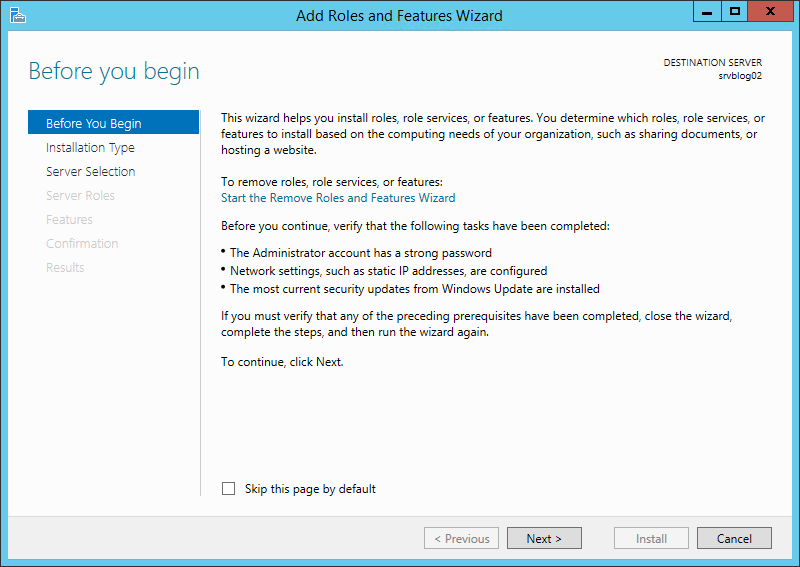
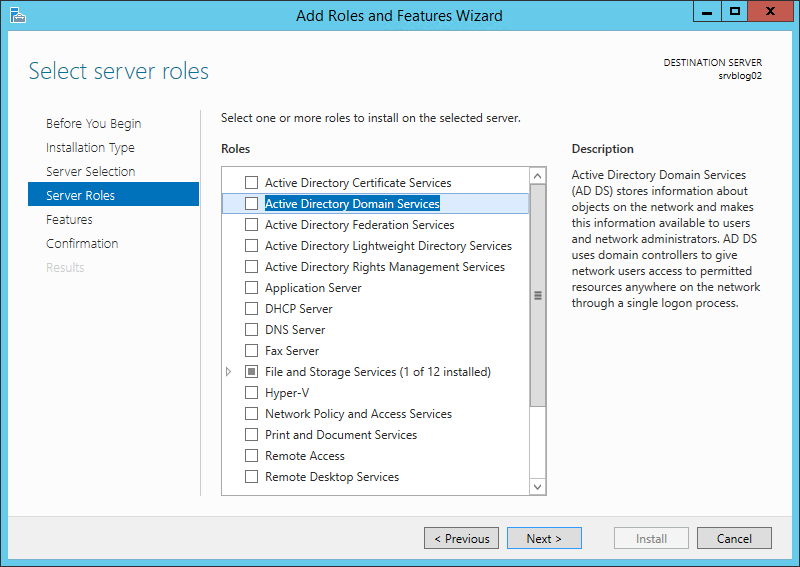
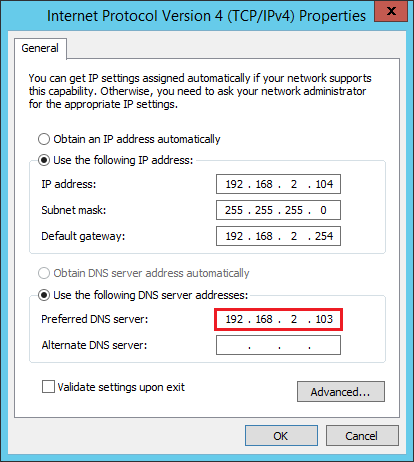
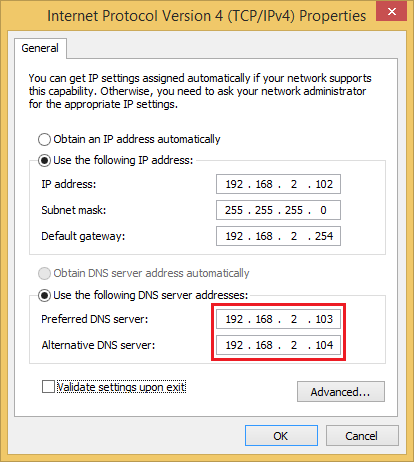
Now that Active Directory Domain Services are installed, open the network preferences and add the Primary Domain Controller as the primary DNS server (in our example 192.168.2.103 while the BDC IP is 192.168.2.104). Then restart the machine:
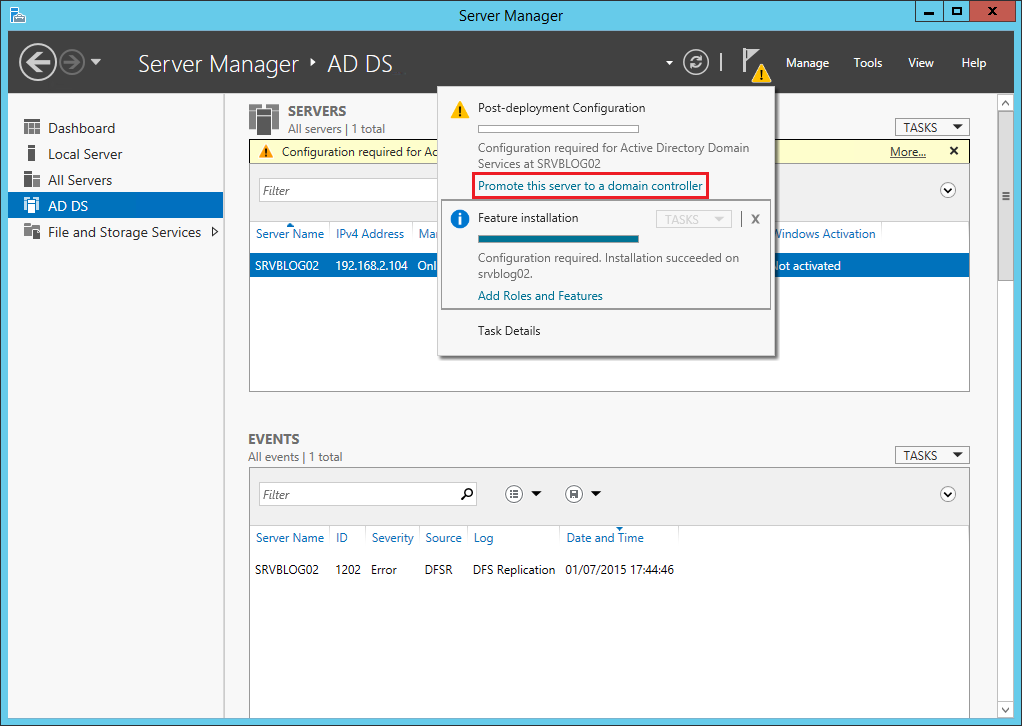
It’s time to configure the new Backup Domain Controller. Click Promote this server to a domain controller:
Check Add a domain controller to an existing domain then click Select:
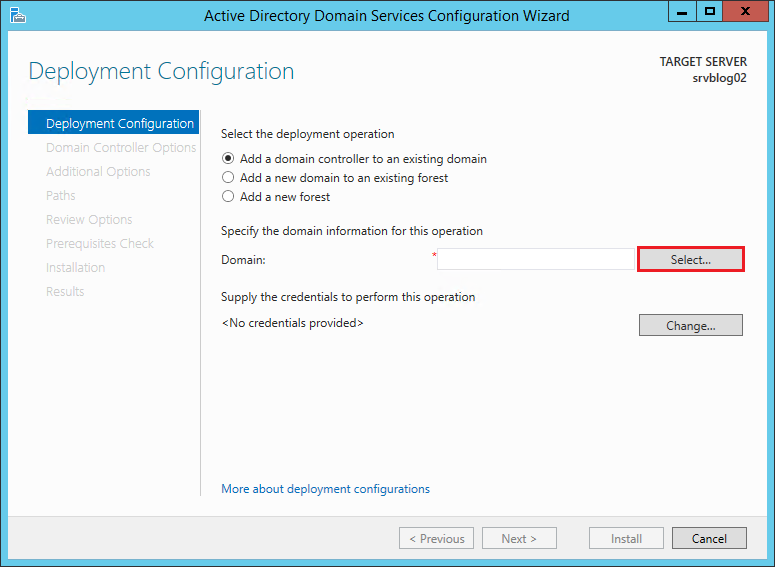
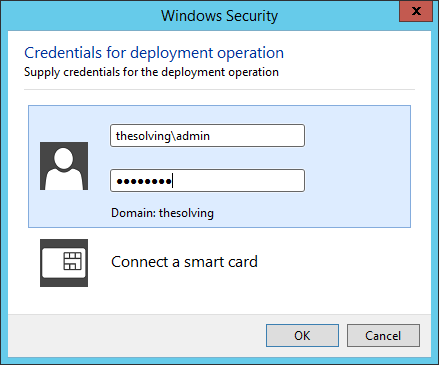
Specify the credentials of the domain administrator:
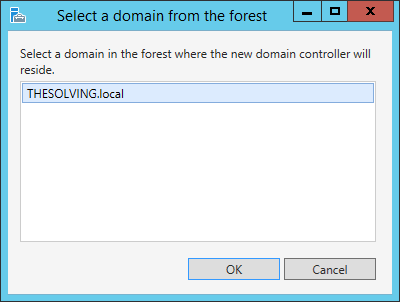
Select the domain:
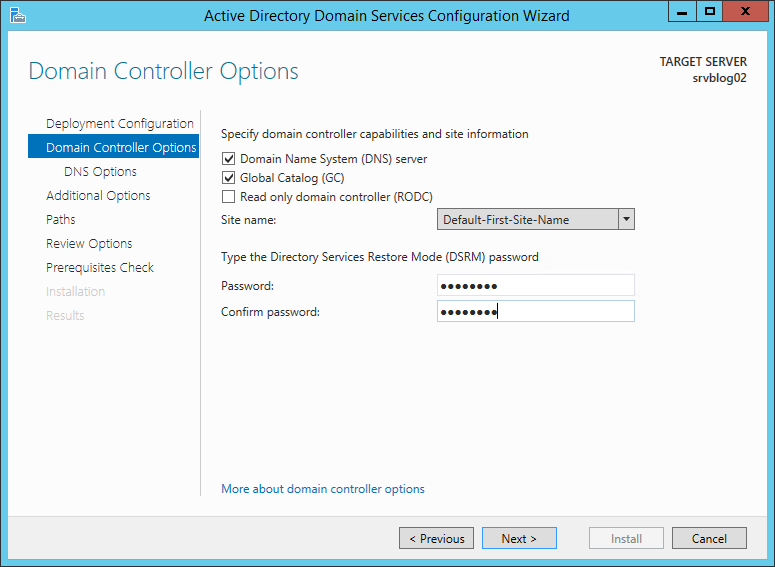
Specify a Directory Services Restore Mode password then click Next:
Click Next:
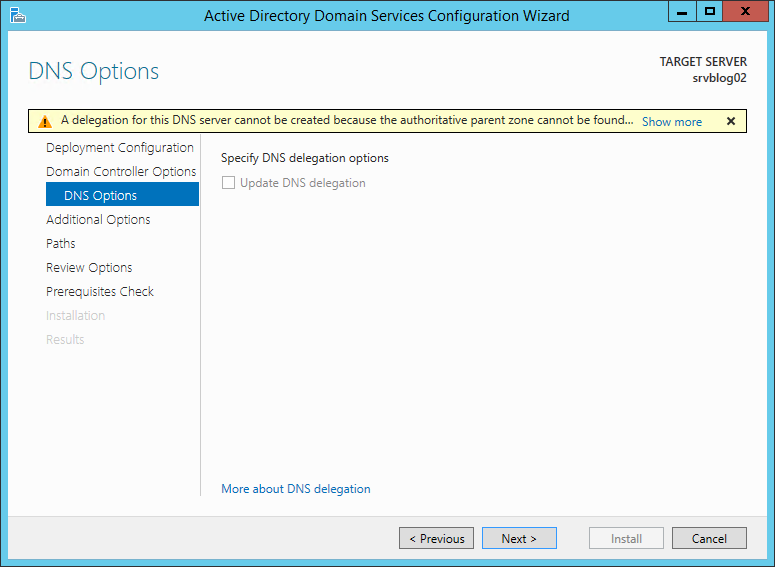
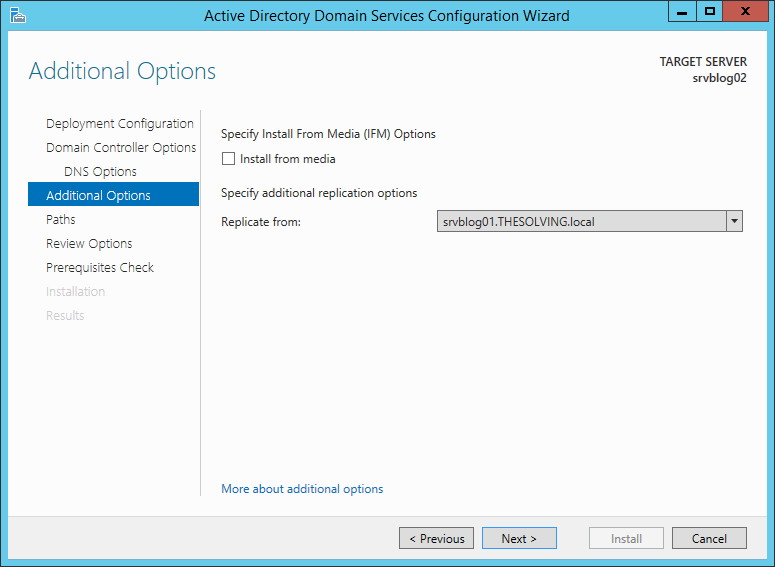
Select the Primary Domain Controller from the dropdown menu then click Next:
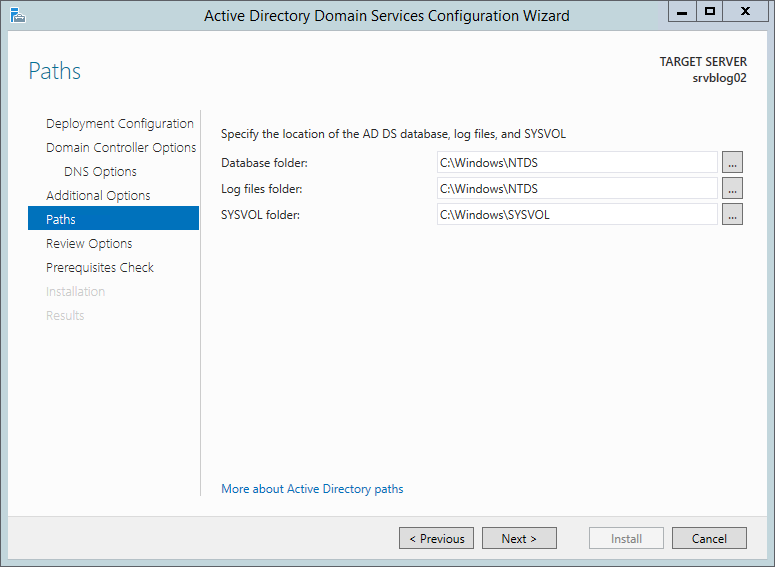
Default paths are fine. Click Next:
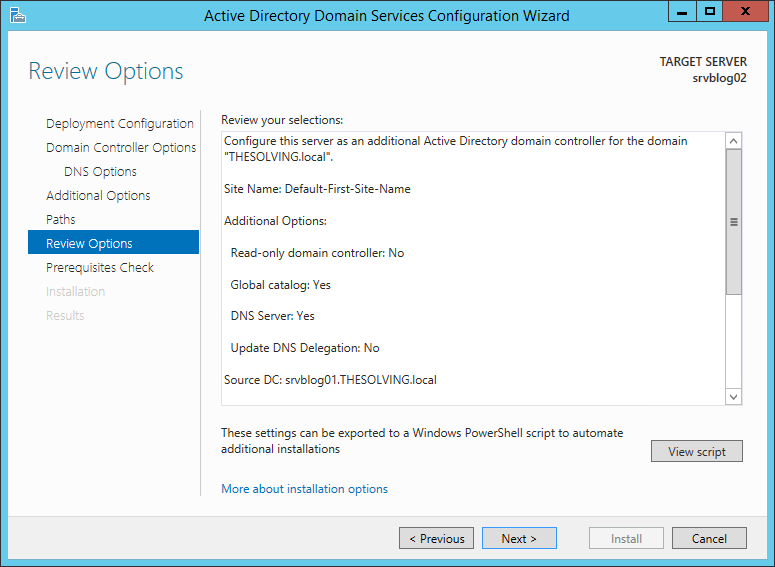
Click Next:
Windows Server will check if it’s all ok. Then click Install:
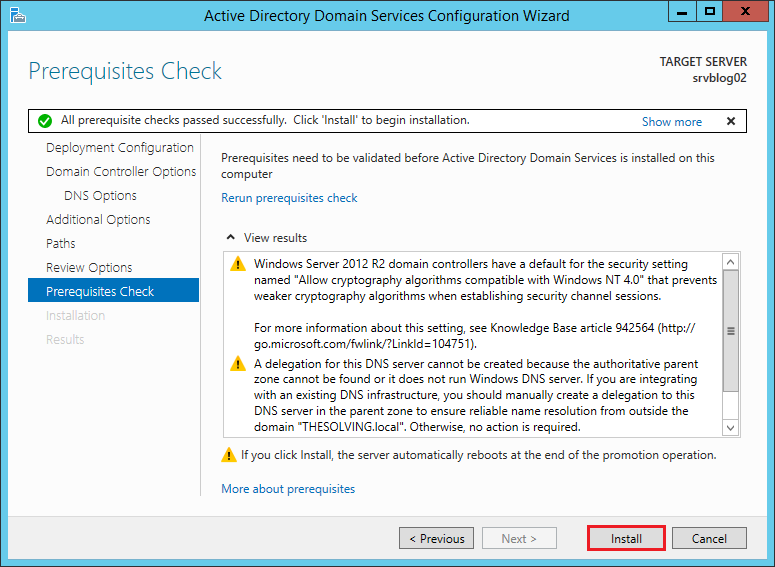
After a few minutes the Backup Domain Controller will be ready. Just restart the machine and remember to add the Backup Domain Controller IP as a secondary DNS server in your client machines:
Read related articles
How to configure static routes to route traffic through a specific gateway
Learn how to configure static routes on Windows Server and Windows 11 using route add and PowerShell’s New-NetRoute, so traffic to specific destinations takes the gateway you choose.
How to reset NTFS permissions with ICACLS
Learn how to fix broken NTFS/ACL permissions on Windows Server using ICACLS: reset ACLs, handle access denied errors, take ownership, and back up permission trees safely.
Configuring and using Windows Deployment Services (WDS)
A 2026 guide to WDS: installation, PXE boot, boot/install images, and the limitations introduced with Windows 11 and Server 2025.