

 Italiano
 Español
Thanks to the powerful VMware vCenter Converter, it’s pretty easy to convert a Microsoft Hyper-V virtual machine into an ESXi (vSphere) one.
With Windows Server 2012 and higher, the operation is quite similar to the P2V conversion we explained a few days ago. With Hyper-V running on Windows Server 2008 R2 you can only migrate powered-off Windows VMs.
Let’s see how to perform the conversion.
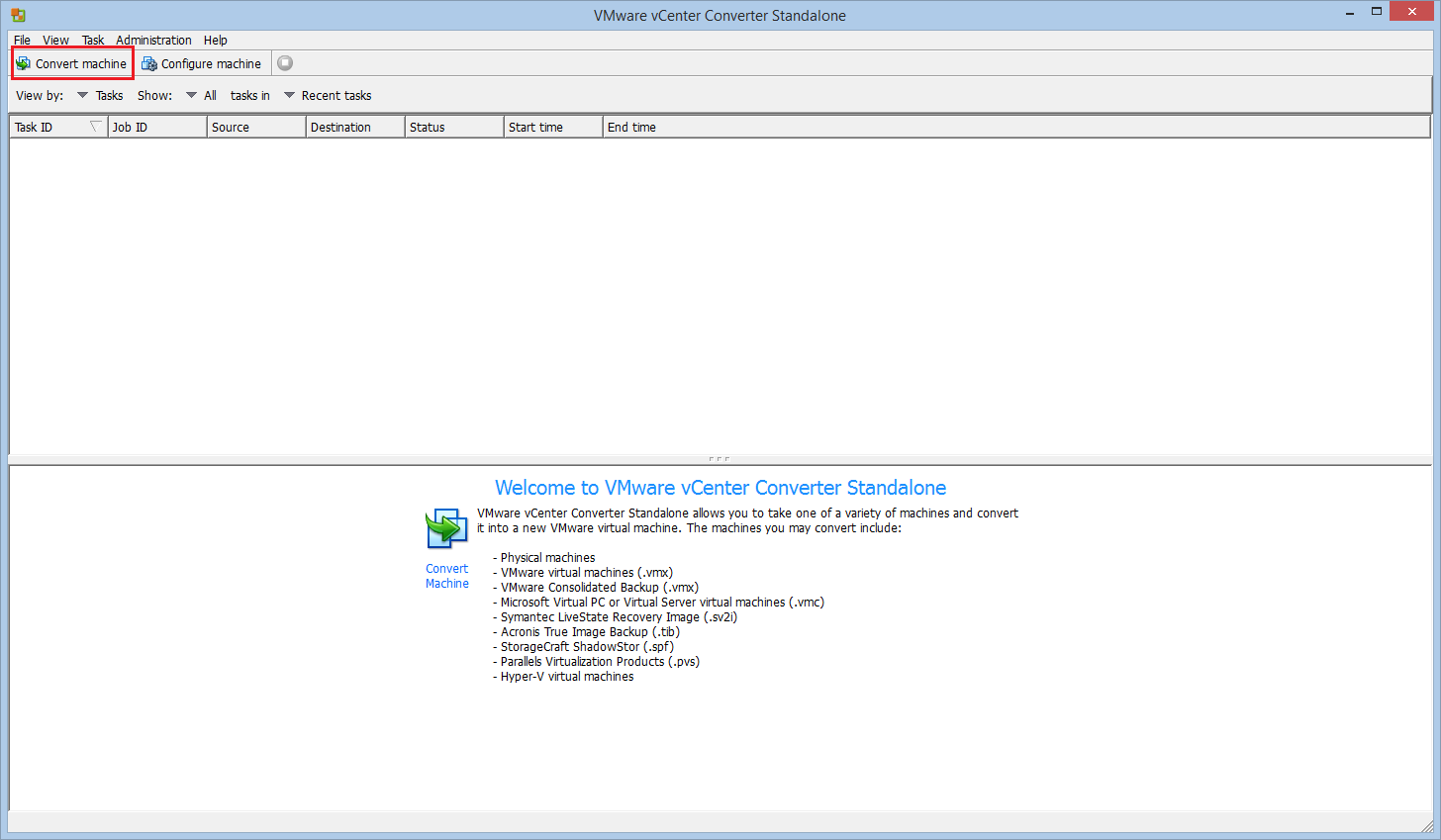
Download and install VMware vCenter Converter. Then launch it and click on Convert Machine:
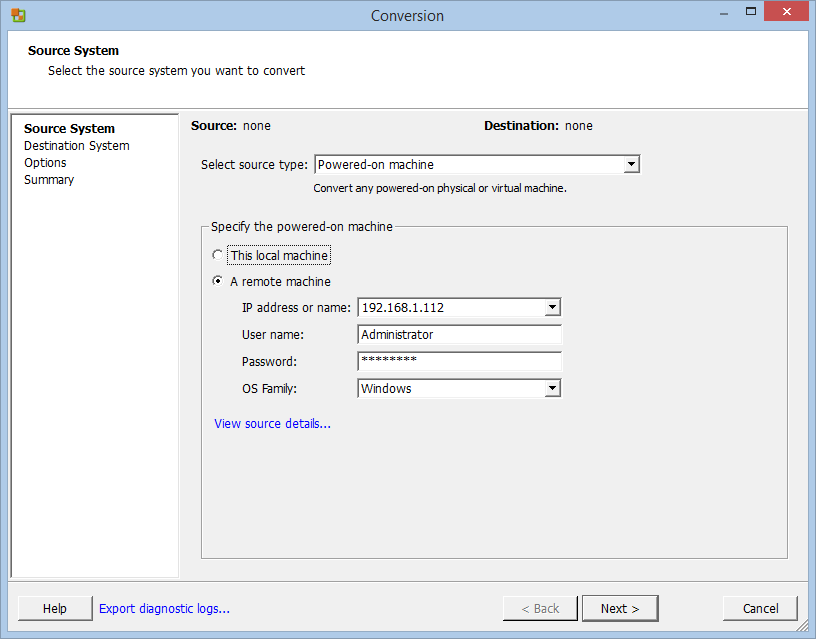
Select the source type – with Hyper-V on Windows Server 2012 or higher, Powered-on machine – and specify the access information. If you need to convert a VM running on Windows Server 2008 R2 you need to power-off the machine and select Hyper-V Server:
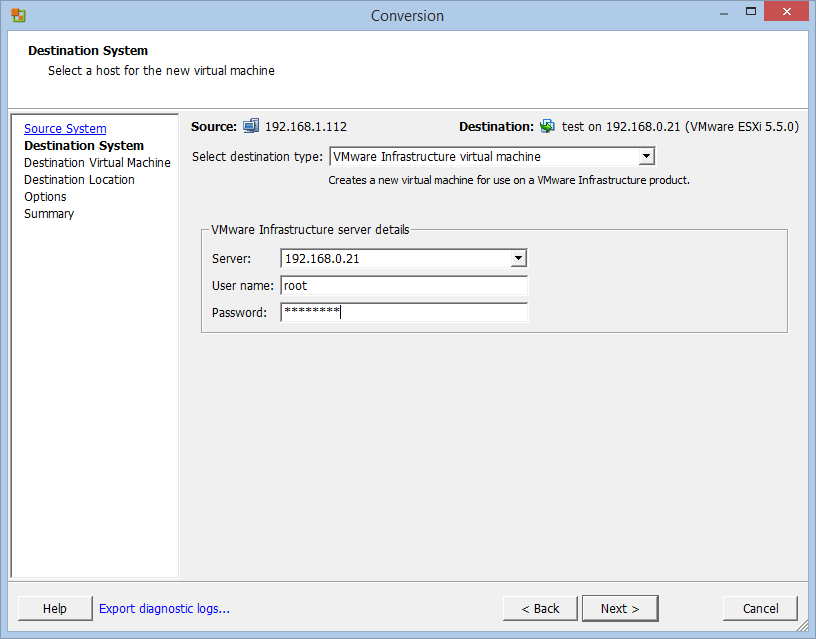
Now it’s time to specify the ESX/ESXi node where you want to install the virtual machine:
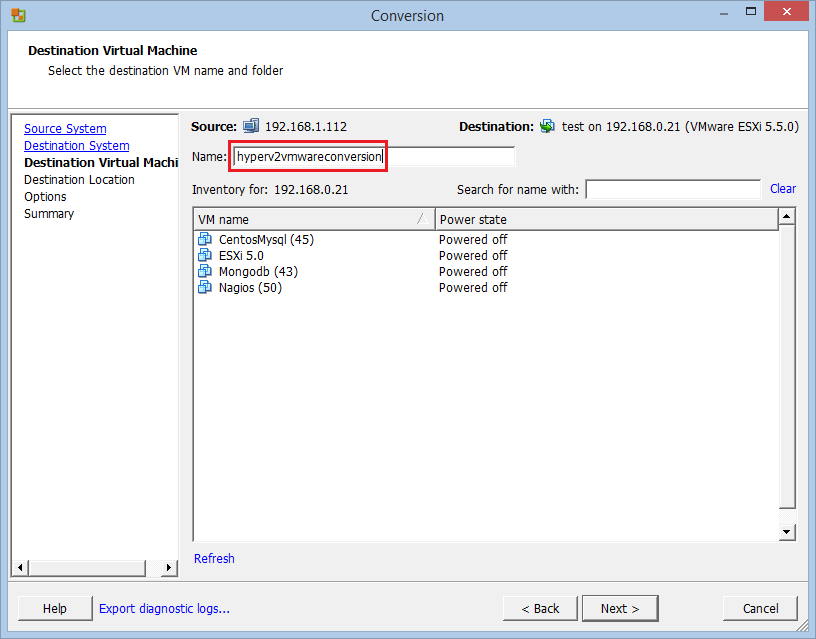
Select the destination VM or create a new one like we did:
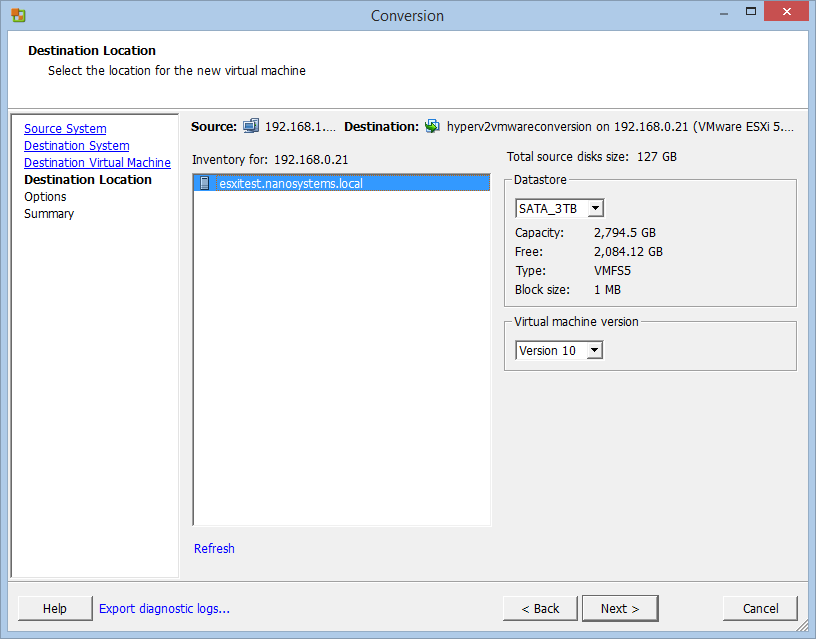
vCenter Converter will ask you to select the datastore:
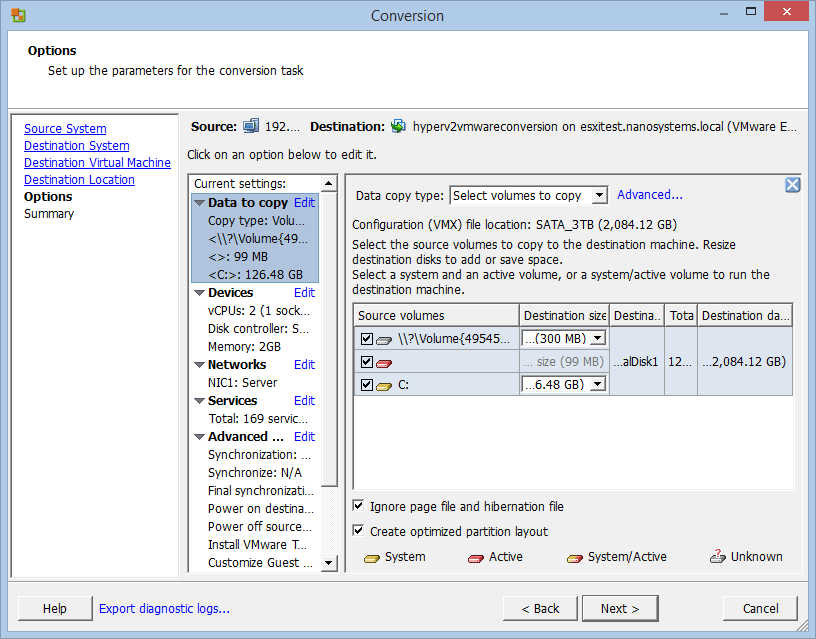
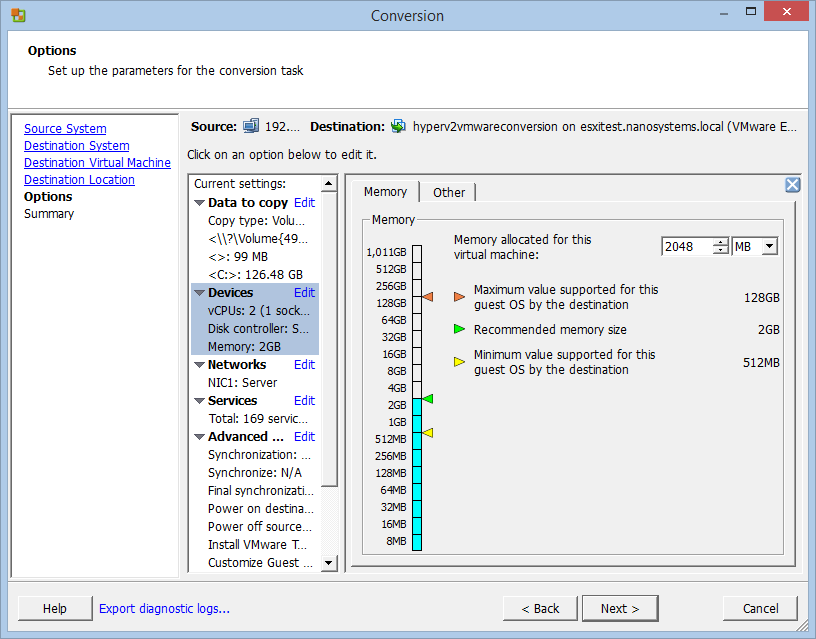
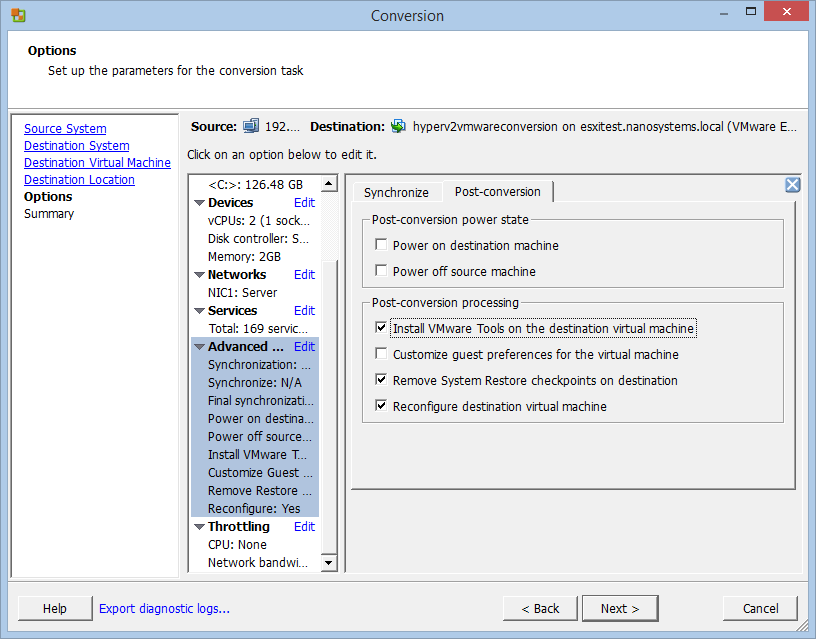
Now the funny part, you can configure the virtual machine specifying the number of sockets, CPUs, the amount of RAM and many other things. We suggest to enable the VMware Tools installation from the Advanced tab:
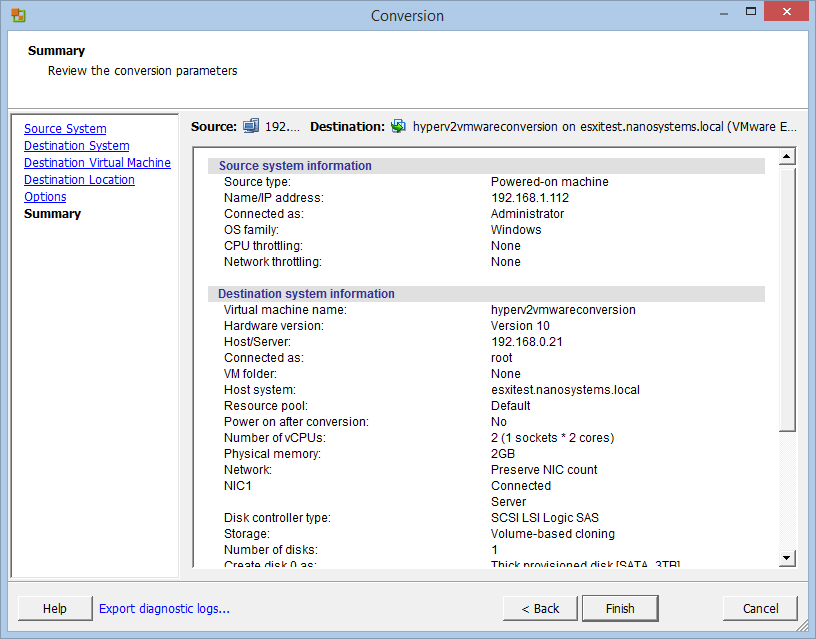
You’re ready to start the Hyper-V to ESXi conversion, just click Finish:
Read related articles
How to install and configure VMware ESX 9.1 in 2026
Install and configure VMware ESX 9.1 (formerly ESXi) step by step: hardware requirements, ISO download from the Broadcom portal, DCUI network setup, Host Client access and the new licensing model.
VMware vSphere Client in 2026: how to access and manage vCenter
There is no VMware vSphere Client to download in 2026. Access vCenter through the built-in HTML5 client at https:///ui, manage standalone ESXi hosts via the Host Client, and automate with VCF PowerCLI. This guide covers the free ESXi Hypervisor, VCF 9, support timelines, and migration paths for MSPs.
Install VMware ESXi on a Hyper-V
It is possible to use nested virtualization to run VMware ESXi as a Virtual Machine in Hyper-V. To some, this